Modern mobile device management solutions like Microsoft Intune are becoming more popular because they allow people to use their personal iPhones or iPads to access organizational data while giving the organization a controlled way to protect its assets on those devices. For bring-your-own-device scenarios, the goal is not to take over the user’s phone. Instead, Intune helps create a practical balance: users keep personal privacy and familiar device ownership, while IT can apply the right level of management to work apps, work data, and device access. This creates a practical compromise where both the user and the organization’s goals are satisfied.
However, navigating the various enrollment options can be confusing and complicated. This blog reviews the enrollment approaches available for personally owned iOS/iPadOS devices in Microsoft Intune. Please note that there are additional enrollment options which are better suited to corporate-owned devices that are not covered in this blog. This blog also does not cover app protection without device enrollment where Intune protects organizational data inside managed apps without enrolling the entire device.
Each option offers a different tradeoff between user experience, privacy, and administrative control, so choosing the right method depends on how much management the organization needs and how much separation users expect between personal and work data.
Enrollment Types
There are four enrollment methods for personally owned iOS devices though one of them is a legacy method and can’t be set up for a new Intune deployment. One other is still available but is also nearing obsolescence.
The sections below review how each Intune enrollment option fits into that balance.
- Account-driven User Enrollment: A modern BYOD-focused method that creates a physically separate partition on the device for work related apps and data. The user starts enrollment from iOS Settings using a work or school account, resulting in two accounts being associated to the device: a personal iCloud account and an Apple Managed Account that is associated with the organization.
- User Enrollment with Company Portal: A legacy Apple User Enrollment path where the user signs in to the Intune Company Portal app, is redirected through Safari and Settings, and installs an enrollment profile that gives IT a limited management scope focused on protecting work data while preserving personal privacy.
- Web-based device enrollment: A streamlined enrollment experience that begins in Safari and eliminates the Company Portal app. User-affinity is not associated with the device, which means that apps cannot be targeted to users and user-based Conditional Access policies will not be applied. This model results in a higher level of administrative control.
- Device enrollment with Company Portal: A traditional user-driven enrollment method with the Company Portal that provides broader device management capabilities but less data separation than User Enrollment. Though this method is still available, it is being phased out in favor of web-based device enrollment.
Effectively, this leaves account-driven user enrollment and web-based device enrollment as the enrollment methods going forward.
Account-Driven User Enrollment
Account-driven user enrollment is most notable in that it establishes a dedicated work partition and limits administrative control over the device making it a great option for personally owned devices. However, the requirements for configuration are more complicated than for web-based device enrollment. See this knowledge base article for specifics on how to configure account-driven user enrollment.
This enrollment method requires Apple managed accounts that are maintained in Apple Business (recently renamed from Apple Business Manager). Preferably Apple Business can be federated with Microsoft Entra. Federation provides two primary benefits:
- Allows for single sign-on during device enrollment where users provide their Entra credentials
- Simplifies administrative tasks in that Apple managed accounts are automatically created via the federated relationship.
Without federation, users would be required to enter their Entra credentials to initiate Intune enrollment and would also be prompted for their Apple managed credentials later in the enrollment process. Administrators would also need to manually create/manage these credentials in Apple Business.
An additional complexity is that a requirement for setting up Apple Business is that the login domains used by the organization need to be registered in Apple Business along with running a process called domain capture. Domain capture is a process where the organization claims control over its domain(s), meaning that users who have created a personal iCloud account using their work email will need to change their Apple account to use a different domain (such as Outlook.com, Gmail.com, etc.). When the capture process is initiated, users who have iCloud accounts using their work email will receive an email from Apple stating that they must change their login to something else within 30 days or Apple will change the account. This process frees up the account to be used as an Apple managed account.
When enrollment is completed, there are two accounts associated with the device:
- The user’s personal iCloud account.
- The Apple managed account. This account is used by the work-based partition on the device.
Enrollment is initiated via Apple Settings (General > VPN and Device Management) where users enter their Entra ID credentials.
Another requirement for this enrollment method is publishing a JSON file to the company’s web site. This file provides enrollment information for the organizations Entra tenant and is leveraged by the enrollment process. The requirement for this file often adds some complexity during initial Intune configuration because often Intune administrators do not have access to the organization’s web site.
Web-Based Device Enrollment
Web-based device enrollment differs from account-driven user enrollment in that it does not provide a dedicated work partition, allows for more administrative control over the device, but is simpler to configure. The additional administrative controls allow Intune administrators to perform a factory reset of the device (this cannot be done with account-driven user enrollment) and view certain details of the device, such as seeing a list of all installed applications and device identifiers such as phone and serial numbers and IMEI information. Reference this KB article for more detail.
Intune enrollment is launched via Safari (This is the only supported browser for enrollment) by navigating to https://portal.manage.microsoft.com/enrollment/webenrollment/ios and having the user enter their Entra credentials.
This method eliminates the requirement for Apple managed accounts (and the complexities that introduces) and the need for publishing a JSON file to the organization’s web site. As such, enrollment is simpler to implement.
Since web-based enrollment allows for greater administrative control (i.e., the ability to do a factory reset) there is a good use case to leverage this enrollment method for organization-owned devices. The more common method of enrolling org-owned devices is via automated device enrollment (ADE), which performs the Intune enrollment as part of the out-of-box build experience. Sometimes this method is not practical if devices are already in the field since enrollment would require a factory reset. As such, web-based enrollment offers a good alternative.
Additional Considerations
Both enrollment profiles eliminate the need for the Company Portal. In fact, the Company Portal should not be used with these enrollment options because it is associated with the two older enrollment methods. If a user attempts to use Company Portal, it will attempt to do an Intune enrollment, which would fail since the device is already enrolled or would fail since the enrollment methods the Company Portal supports are not configured. Instead, the web-based version of the Company Portal should be used. Microsoft Intune Web Company Portal can be accessed at this here. The recommendation is to publish the web link via Intune.
Both enrollment methods use just-in-time registration (JIT), which replaces some of the processes that the Company Portal app provides. JIT allows users to initiate device enrollment from an app and uses Apple’s single sign-on extension (SSO) app extension. This allows for Microsoft Entra device registration and compliance checks, which the Company Portal app used to provide. When using these enrollment profiles, JIT should be used to enable full device management. Without the Apple SSO extension Conditional Access policies requiring device compliance will fail. JIT is implemented via Intune configuration profiles. Reference this KB article for more info.
Using Apple Volume Purchased (VPP) apps as opposed to app-store apps is recommended since they allow for better application management for the apps that need to be assigned either a user or device license. With web-based enrollment, the license type must be device since user affinity does not apply when using device-based enrollment. As such, apps cannot be published as available because the Company Portal leverages user affinity to determine which apps have been published as available. As such, for web-based device enrollment, apps must be published as required and there is not an option for available apps.
One downside to using VPP apps for user-based enrollment is that if an app is already installed on the device, the VPP app will not replace it. This means the app will not be managed. If Conditional Access policies require apps to be managed (via device compliance or through app protection policies). these apps will fail the policies, and the user will not be able to use the app to access organization data. As such, users should uninstall those apps prior to enrollment so Intune can push down the VPP version. With device-based enrollment, users are prompted to allow management when the user runs the application after enrollment. If the user allows the app to be managed, the app will pass the conditional access policies.
Here is a table summarizing the differences between the two enrollment methods:
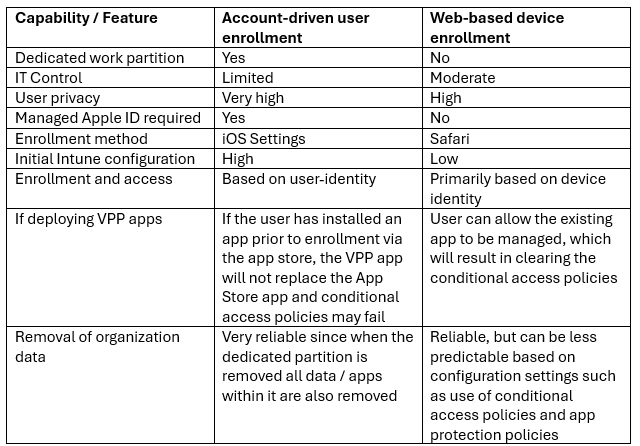
In practical terms, the choice between account-driven user enrollment and web-based device enrollment comes down to the balance between control and privacy; and complexity to implement. Account-driven user enrollment provides for stronger separation between user’s personal device experience and their work identity whereas web-based device enrollment gives IT broader control and is simpler to implement. My recommendation is to lead with account-driven user enrollment and fall back to device-based enrollment if necessary.